Tool for this guide: Remove Photo Location
A photo taken with a phone holds more than the picture: it also holds shooting data (EXIF). When location services are on, that includes the latitude and longitude where it was taken, so a single photo taken at home can reveal where you live. You cannot see it on screen, which makes it easy to send without noticing.
What a photo can contain
| Data | Examples |
|---|---|
| Location | Latitude and longitude, altitude, direction faced |
| Date taken | Date, time and time zone |
| Device | Phone or camera maker and model, lens |
| Camera settings | Exposure time, aperture, ISO, flash |
| Editing history | The app that edited the photo and when (XMP) |
| Captions, rights | Captions, author, place names (IPTC, XMP) |
The latitude and longitude are precise enough to find the building on a map.
When does it travel with the photo?
Many social networks and chat apps remove location data when they shrink photos for upload. But this differs by service and can change, so it is not something to rely on. When the file is passed on as is, the data goes with it:
- Attaching photos to an email
- Uploading to cloud storage and sending a share link
- Using “send original” or “send as file” in a chat app
- Posting to blogs, forums or marketplaces that keep the original file
Checking your photos for a location
- iPhone: In the Photos app, swipe up on a photo to see where it was taken on a map
- Android: In your gallery app or Google Photos, swipe up on a photo to see its location in the details
- This tool: Add photos to Remove Photo Location and the list shows the location (latitude, longitude), date taken and device for each one
Steps to remove it
- Open the Remove Photo Location tool.
- Click “Choose image files” or drag photos onto the screen. You can add many at once.
- Choose what to remove. For photos you are sending to others, choose “Remove all info”. To keep sorting by date in your photo app, choose “Location only”.
- Click “Remove info”. For one photo, click “Download”. For several, click “Download all” to get one ZIP.
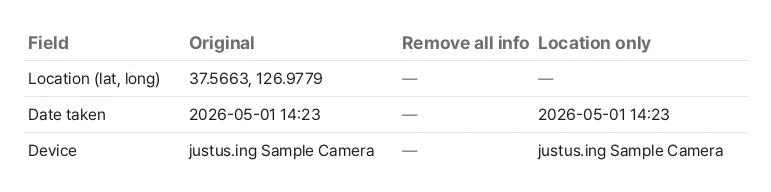
This is the real result of cleaning a sample photo with a location using this tool, read straight from the files. “Location only” empties the location and keeps the date taken and device.
The quality stays the same
Saving a JPG again lowers its quality a little every time. This tool does not save the photo again; it only takes the info part out of the file, so the image data is not changed by a single byte. Even when removing all info, a single orientation entry is kept so phone photos stay upright.
Motion photos have a short video attached after the picture. It can hold shooting data too, so the video part is removed as well, leaving only the still photo. Android HDR photos (Ultra HDR) also keep brightness data after the picture; it is removed for the same reason, so they show as regular photos. The tool tells you before removing anything when you add such photos.
Stop saving the location in new photos
- iPhone: Go to Settings → Privacy & Security → Location Services → Camera and choose “Never”. For photos you have already taken, you can also tap “Options” at the top of the share sheet in Photos and turn off “Location” before sending
- Android: In your camera app settings, turn off “Location tags” (Samsung) or “Save location” (Google Pixel)
Menu names can differ slightly by device and version. With the location off, new photos no longer appear in your photo app’s places view, so removing it only before sending is also a good option.
What cannot be removed
What is in the picture itself stays. A view from a window, shop signs, an address on a parcel or a license plate can still reveal a place, so look over the photo before you post it.