Tool for this guide: Stitch Images
To show someone a long chat or article, you often scroll down and take several screenshots. Sent as they are, the other person has to page through them in order, and the same title bar and overlapping content repeat on every shot. Joined into one image, it reads from top to bottom in one go and is easier to keep.
Why stitch when phones have scrolling screenshots?
Phones can capture a whole scrolling screen in one image, but some apps do not support it, and on iPhone it only works in a few apps, such as web pages in Safari. Long screens inside apps, such as chats, still have to be captured in several shots. Screenshots you already took, or screenshots from a computer, also need to be joined separately.
How overlapping parts are removed
Screenshots taken while scrolling repeat two things.
- Fixed bars: the status bar at the top (clock, battery), the app’s title bar, and the tab bar or message box at the bottom stay in place as you scroll, so they appear on every shot
- Overlapping content: when you take the next shot, the bottom of the previous one shows again at the top
Stitch Images compares rows at the same height in two screenshots to find the fixed bars at the top and bottom, then treats the longest stretch where the end of one shot matches the start of the next as the overlap. Parts that change on every shot, like the clock, are skipped, and matching blank background alone does not count as an overlap. Only the top bar of the first shot and the bottom bar of the last shot are kept.
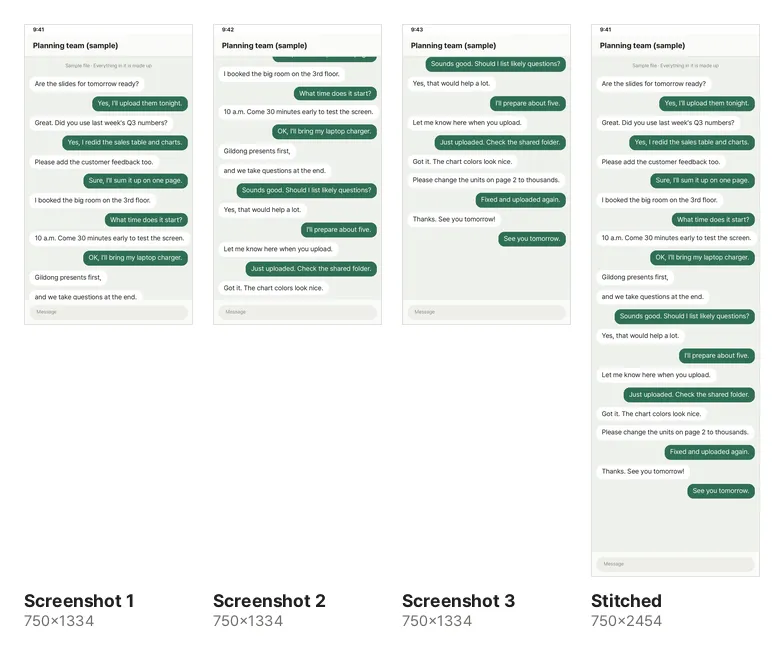
This is the actual result of stitching the three sample chat screenshots with the tool. Stacked as they are, they would be 4002px tall, but without the bars and overlaps the result is 2454px.
Tips for screenshots that join well
- Scroll a little at a time: overlapping about a quarter to a third of the screen makes the overlap easy to find. With no overlap at all, the tool cannot tell where to join and simply stacks them
- Use the same device and screen size: overlaps are only looked for between screenshots of the same width. Do not change the text size or zoom in between
- Avoid moving things: videos, animated ads or new messages arriving in the overlapping part may stop the rows from matching
If the automatic result is wrong, each seam in the list shows how many pixels are cut off from the “Bottom of upper image” and the “Top of lower image”. Change the numbers and the preview updates right away.
Choosing a format
| Format | Use it when |
|---|---|
| JPG | You post or send it in a chat app or social media. Small files |
| PNG | You want sharp text, or the result is very long. No quality loss |
| WebP | You want it smaller than JPG. Some programs cannot open it |
| You print it or send it as a document. Split into A4-shaped pages in one PDF |
Screenshots are mostly text and flat colors, so PNG files are often not large. One JPG can hold up to 32,767px and one WebP up to 16,383px, so for longer results save as PNG or split them.
Split it if it is too long
Very long images can be awkward for the person receiving them. Chat apps and social media often shrink or crop long images so the text becomes unreadable. Turn on “Split a long result into several images” and set a height to get several images in one ZIP. Each cut is made at a blank line within that height, so lines of text are not cut in half.
Check names and numbers before sending chat screenshots
Stitching happens entirely in this browser and your images are not uploaded anywhere. Before sending the result to someone else, though, check that it does not show things like the other person’s name, profile photo or phone number.