Tool for this guide: HEIC to JPG
Copy photos from an iPhone to a Windows PC and you often get files like IMG_0001.HEIC that will not open, or an upload form says “Only JPG and PNG are allowed.” Here is what HEIC is, how to convert it, and what changes when you do.
What is HEIC?
HEIC is the photo format iPhones and iPads use by default since iOS 11 (2017). It stores the photo with HEVC (H.265), a video compression method, so files are about half the size of a JPG of the same quality. That saves space on the phone, but the built-in Windows Photos app and many websites and work programs still cannot read HEIC. HEVC carries patent license fees, so not every program includes it by default.
How to convert
- Open the HEIC to JPG tool.
- Click “Choose image files” or drag HEIC photos onto the page. You can add many at once.
- Choose the format. JPG is right when the photo must open everywhere.
- Click “Convert photos”, then “Download” for one photo or “Download all” for one ZIP.
Chrome, Edge and Firefox cannot read HEIC by themselves, so the tool loads a HEIC reader (libheif, about 0.5 MB) from this site and opens the photo inside your browser. Safari reads HEIC on its own. Either way, your photos are never uploaded.
Portrait photos stay upright
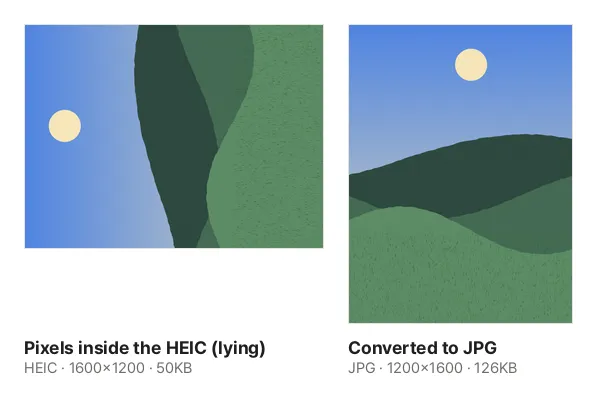
This is the actual result of converting the sample photo with this tool. An iPhone stores the photo lying on its side and only adds a note saying “turn 90° when showing it.” A converter that ignores the note gives you a sideways photo. This tool applies the note and saves the photo upright. You can also see the same photo become more than twice as large as a JPG.
What is lost in conversion
- Photo information: the photo is redrawn and saved, so the location (GPS), date taken and device are not kept. That is safe for posting online, but photo apps may no longer sort the photos by the date taken.
- Live Photo motion: a Live Photo is a HEIC photo plus a separate short video (MOV). Converting the HEIC gives you the still photo. A HEIC file holding several images becomes the one main photo shown in the Photos app.
- HDR brightness: the extra brightness data and 10-bit color of HDR photos are not kept; you get a regular 8-bit photo, which may look less bright than the original on an HDR screen.
- Wide color: iPhones capture a wider color range (Display P3) than regular screens. The tool converts it to regular screen color, so the photo looks similar on any screen.
Getting JPG from the iPhone in the first place
- When taking photos: choose Settings → Camera → Formats → Most Compatible and future photos are JPG. “High Efficiency” is HEIC. Photos you already took do not change.
- When copying to a PC: choose Settings → Photos → “Transfer to Mac or PC” → Automatic and photos copied by cable are converted to JPG. “Keep Originals” copies them as HEIC.
- When sending: photos sent by email or a messenger are usually converted to JPG. Sending the “original” file can keep it as HEIC.
Most Compatible makes each photo about twice as large. If storage is tight, keep taking HEIC and convert only when needed.
After converting
To make the photos smaller, continue with Compress Image. You can add HEIC photos directly, without converting first, to Image to PDF, Crop & Rotate Image, Pixelate & Blur Image and ID Photo Maker.