Tool for this guide: Image to Text (OCR)
The text in a photo of a receipt or notice, or in a chat screenshot, looks like text on screen, but to a computer it is only a grid of colored dots (pixels). That is why you cannot select or copy it. Text recognition (OCR) finds the shapes of letters among those dots and turns them into real text, so you can move names, phone numbers and sentences without retyping them.
Steps
- Open Image to Text (OCR).
- Click “Choose image files” or drag images onto the screen. You can add several at once.
- Choose the languages to recognize (English, Korean).
- The first time, click “Download data”. The recognition engine and language data (about 6 MB for English, 7 MB with Korean) are downloaded once and kept in this browser. If you already downloaded them in OCR PDF, they are not downloaded again.
- Click “Recognize text”. The text of each image appears in the box next to it.
- Fix any mistakes right in the box, then take the text with “Copy all” or “Download TXT”.
Text is read line by line
The engine first finds where the lines of text are, then reads each line. The tool draws a box on the image for every line it read, so you can see at a glance whether any line was missed.
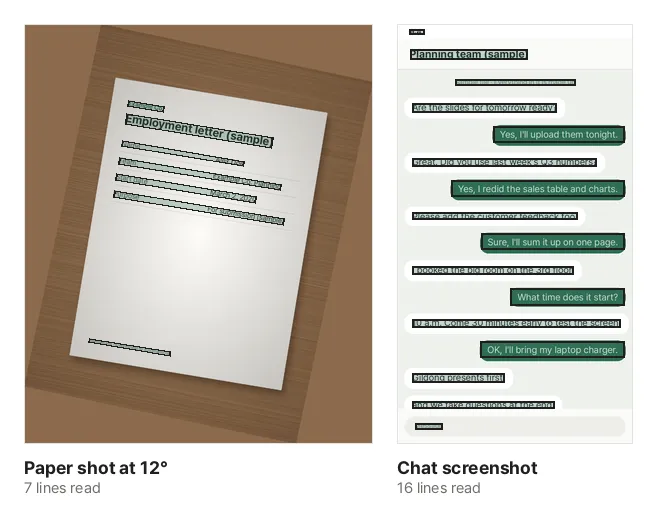
These are real results for the sample document photo tilted by 12° and a chat screenshot. Two things happen before the lines are found.
- Tilted lines are straightened: when lines are tilted, the engine splits one line into several. The tool measures the tilt and straightens it if it is within 20°. Sideways or upside-down images are turned and read again when almost nothing could be read.
- Different backgrounds are checked separately: the engine expects dark text on a light background, so white text in green or blue chat bubbles, or text on a dark bar, is often skipped entirely. When an image mixes backgrounds, the tool redraws only what differs from its background, reads it once more and adds just the lines that were missed.
How to shoot so it reads well
Most recognition mistakes come from the photo itself. A little care when shooting makes a big difference.
- Light: text half covered by a shadow, or washed out by glare from a lamp or flash, cannot be read. Shoot in even light, such as near a window, without the shadow of your hand or phone.
- Shoot straight on: a slight tilt is corrected, but if you shoot at an angle so the page looks like a trapezoid, the text size changes from top to bottom and mistakes increase. Keep the phone parallel to the paper.
- Text size: if the text is captured too small, the strokes blur together and cannot be recovered even when the tool enlarges them. Move closer so the part you need fills the frame, or zoom in before taking a screenshot. If you shot wide, cut out just the part you need with Crop & Rotate Image.
- Blur: a shaky photo may still be readable to you but looks like different letters to the engine. Check that the text is in focus.
Match the language to the document
The chosen languages decide which letter shapes and words the engine expects. Choosing both English and Korean handles mixed documents, but occasionally a Korean word is read as a few similar-looking Latin letters, and vice versa. For an English-only document choose English only; it is faster and more accurate.
What does not work well
- Handwriting: the engine is made for printed text and reads very little handwriting.
- Vertical text: only horizontal writing is read.
- Chinese, Japanese and other scripts: only English and Korean are supported. Other characters in a sentence come out as wrong letters.
- Decorative fonts and tables: script-like fonts and dense tables are error-prone. Tables are copied line by line, with spaces between the cells.
Mistakes are not marked on screen, so compare numbers, names and other important parts with the image.
Taking the text with you
When you read several images, “Copy all” and “Download TXT” combine them into one, with a --- file name --- heading for each image. The TXT is saved so line breaks and Korean text also show correctly in Windows Notepad. To take one image only, click “Copy” next to it.
If you need a PDF that keeps the original look and lets you search and copy its text, make a PDF with Image to PDF and then use OCR PDF. Invisible text is laid over the picture.
Why nothing is uploaded
Photos you want text from are often receipts, business cards or chats that you would rather nobody else saw. This tool runs the recognition engine inside your browser, so your images and the recognized text never leave your device. The only downloads are the same public engine and language data that everyone gets.