Tool for this guide: Video to GIF
You turn a short clip into a GIF, and it ends up several megabytes, too large for a chat app or forum. GIF simply produces much larger files than video of the same length, so knowing what decides the size helps you choose what to cut while losing the least quality.
Steps
- Open the Video to GIF tool.
- Click “Choose a video file” or drag a video onto the page.
- Play the video, pause where you want, and set the clip with “Set start here” and “Set end here”.
- As you choose the width, frame rate and colors, the bar at the top shows the result size and the estimated file size right away. Use the estimate and reduce settings in the order below.
- Click “Make GIF” to preview the result, then click “Download GIF”.
Why a GIF is larger than the video
Video formats such as MP4 predict what moved where between frames, so even the changes take very little data. GIF, from 1987, has no such trick. It stores the pixels of each frame and shrinks them only with the same kind of compression used for text (LZW). On top of that, a file can use only 256 colors, so photo-like scenes have to drop colors.
The difference is large even for a simple scene. The sample video on this site (640×360, 4 seconds, a 33 KB MP4) becomes a 952 KB GIF at the same size and 20 frames per second, about 29 times larger than the video.
What to reduce, in order
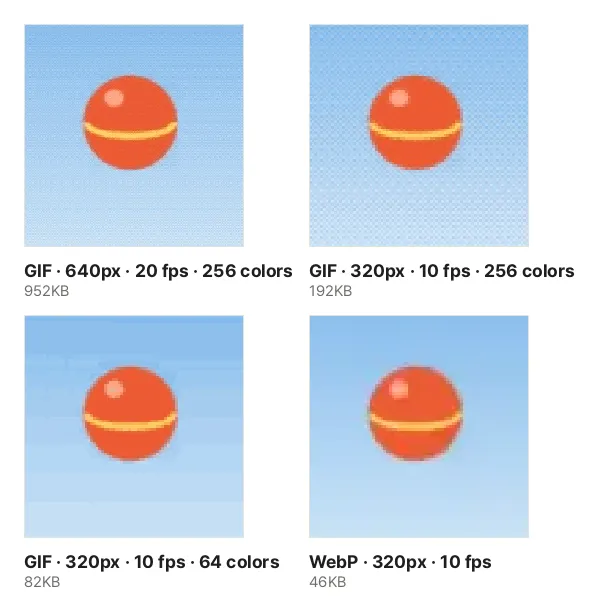
The picture shows real results made with this tool from the 4-second sample, changing only the settings, cropped at the same moment and enlarged.
- Reduce the width first. Halving the width leaves a quarter of the pixels. Going from 640px to 320px took the sample from 952 KB to 317 KB. GIFs are usually seen 320–480px wide on a phone screen or in a comment box, so there is rarely a reason to keep the original size.
- Lower the frame rate. Going from 20 to 10 frames per second took it from 317 KB to 192 KB. Half the frames does not halve the size because, with frames further apart, more of each frame changes. 8–10 frames per second is enough for talking and screen recordings, and around 15 for fast motion.
- Keep the clip short. The size grows almost in proportion to the length. A reaction GIF needs only the key 1–3 seconds, and cutting where the start and end poses match makes the loop smoother.
- Reduce colors last. Going from 256 to 64 colors with dithering off took it from 192 KB to 82 KB, but bands (color steps) appeared in the sky, as in the picture. Screen recordings and drawings with flat backgrounds look clean at 64 colors or fewer, while photos with smooth gradients such as sky or skin are better with more colors.
Dithering on or off?
When there are not enough colors, smooth areas break into visible steps. Dithering mixes two nearby colors in a fine dot pattern so it looks like the color in between. The fine dots you see in the sky of the enlarged 256-color results are dithering. At normal size the steps disappear and it looks smooth, but the dot pattern compresses poorly, so the file grows.
This tool uses a fixed pattern for each position (ordered dithering). Spreading each pixel’s error to its neighbors looks nicer in still photos, but in animation the pattern changes every frame, which shimmers and makes the file larger.
Less motion means a smaller file
This tool leaves pixels that have the same color as in the previous frame empty (transparent), so the previous frame shows through. Scenes with a still background where only part moves shrink a lot, while scenes where the whole picture moves shrink less.
- Handheld footage where the whole frame shakes is much larger than footage shot on a tripod.
- Footage shot in the dark with grainy noise is also large, because the pixels change slightly in every frame.
- Screen recordings store only what changed, so they are much smaller than camera footage of the same size.
Animated WebP as an option
With the same settings, animated WebP comes out at 46 KB, about a quarter of the GIF at the same size and frame rate (192 KB). WebP compresses pictures the way video does and has no color limit, so the sky shows no bands either. It plays in today’s browsers and many apps, but some forums and programs still accept only GIF files, so check where you are posting first. Safari cannot save WebP, so this tool can make only GIFs there.
Common problems
- The result differs from the estimate: The estimate comes from actually saving a few frames of the clip and scaling up. If the scene changes a lot partway through, they differ. After “Make GIF”, check the real size in the bar and change the settings if it is too large.
- It does not loop: Check whether Loop is set to “Play once”.
- The video does not open: This tool reads frames with your browser’s video player. HEVC videos from iPhones open in Safari or on devices that support HEVC, so try another browser.
- You only need one frame as a picture: Video Frame Capture saves a full-size JPG or PNG, which is sharper than a GIF.