Tool for this guide: Trim Video
When you only need part of a long recording, you can cut it right in your browser without installing an editor. Some programs finish in seconds while others take as long as the video, and a quickly trimmed video sometimes starts a little before the point you picked. All of this comes down to key frames.
Steps
- Open Trim Video.
- Click “Choose a video file” or drag a video onto the page.
- Watch the preview and drag the handles at both ends of the bar to pick the part to keep. You can also click “Set start here” or “Set end here” while playing, or type the times (for example 1:05.5).
- Check it with “Play selection” and choose how to trim.
- Click “Trim”, then “Download”.
What is a key frame?
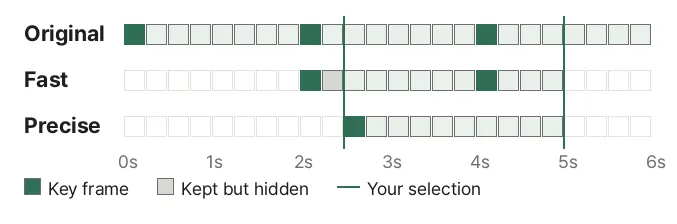
A video does not store every frame as a whole picture. Every few seconds it stores one frame whole (a key frame), and the frames in between only record what changed from the previous one. To show a frame in the middle, the player must decode from the key frame before it. Phone videos usually have a key frame every 1 to 2 seconds; screen recordings and downloaded videos may have one only every 5 to 10 seconds.
Fast trimming (no re-encoding)
The video data is moved over as it is, without decoding. If your start falls between key frames, that frame cannot be decoded on its own, so the file keeps the data from the key frame just before it and is marked to play from your start (an edit list in MP4 and MOV). The grey cells in the picture above are kept but not shown.
- The quality is identical to the original, and even long videos are done in seconds
- No video encoder is needed, so it works in most browsers
- Most players (browsers, phones, QuickTime, VLC and others) start exactly at your start. Some editing programs that ignore edit lists may show the video from the earlier key frame (within a few seconds)
- If there is no key frame within 10 seconds before your start, fast trimming is not done and you are told. Screen recordings have very rare key frames, so moving the data as is would leave a long hidden part in the file, or, in WebM and MKV, which cannot hold frames more than 32 seconds before the start, produce a file that cannot be played. Use precise trimming then
Precise trimming (re-encode)
Every frame in your selection is decoded and saved again. The first frame becomes a new key frame, so it starts exactly where you chose in every program. Because every frame is saved again, it takes about as long as the video and the quality may change very slightly. The sound is moved over without re-encoding.
Which should I pick?
- Videos to send in chat apps, post online or keep: fast is enough
- Videos to put into an editor next to other clips, or where the first frame must be exact: precise
- If precise is not available, this browser cannot save that codec again. Try Chrome or Edge
After trimming
- If the file is still large, lower the resolution with Compress Video. Trimming first also makes compressing faster
- If you only need the sound of your selection, put the trimmed file into Extract Audio from Video
Your video is never uploaded and is processed only in this browser. Even large files are not read all at once, only the parts that are needed.